A shared photo album for your club or team
Short answer
Create one Kins album for the club with its dates set to "Ongoing", pin the invite link in the club chat, and members add photos after every meet, game or event.
Set it up
- Name the album after the club (for example "Tuesday Tennis") and set Dates to "Ongoing".
- Choose who can see it: "Invited only" for members, or "View by link" to show it to people outside the club while only members post.
- Tap Invite, copy the link and pin it in the club chat. The link doesn’t change.
- After each meet or game, members post what they shot to the same album.
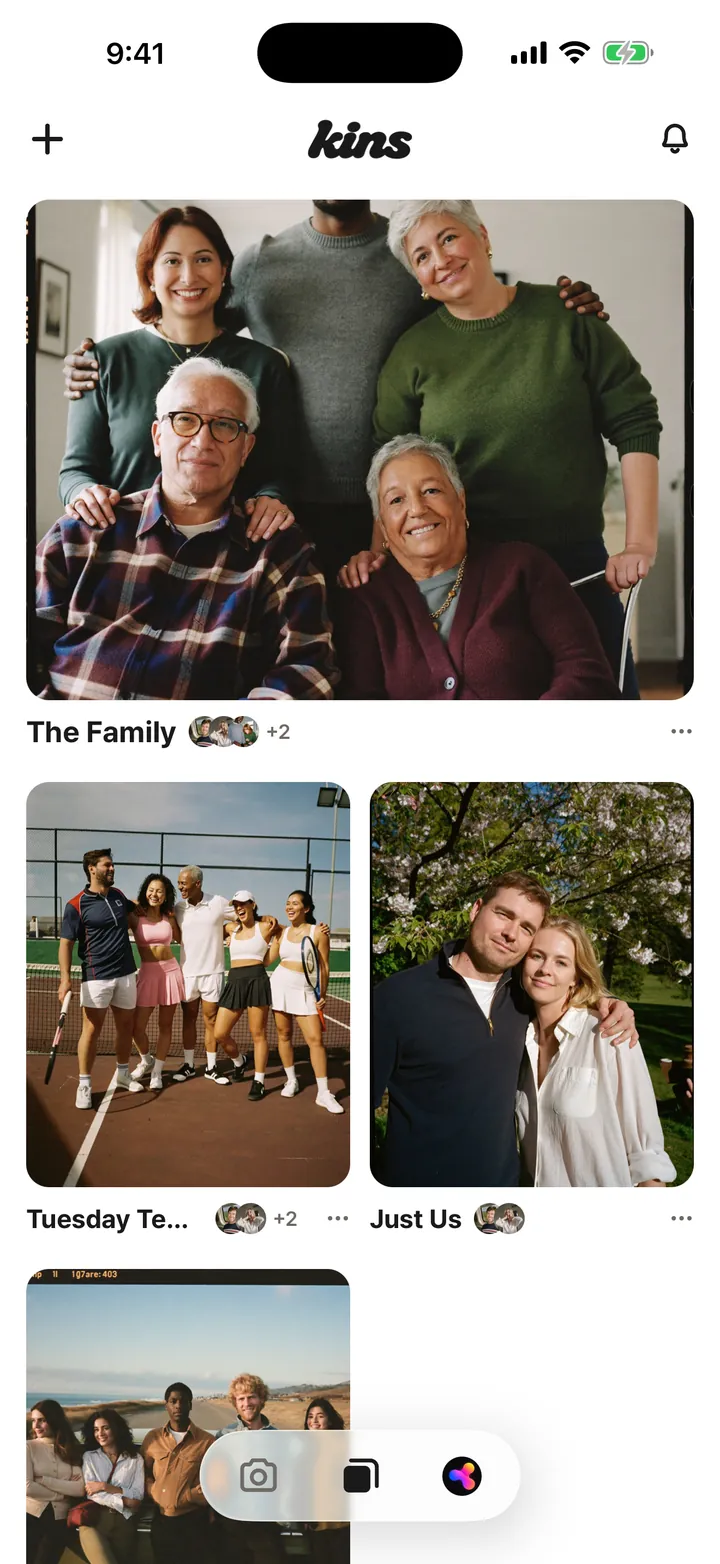
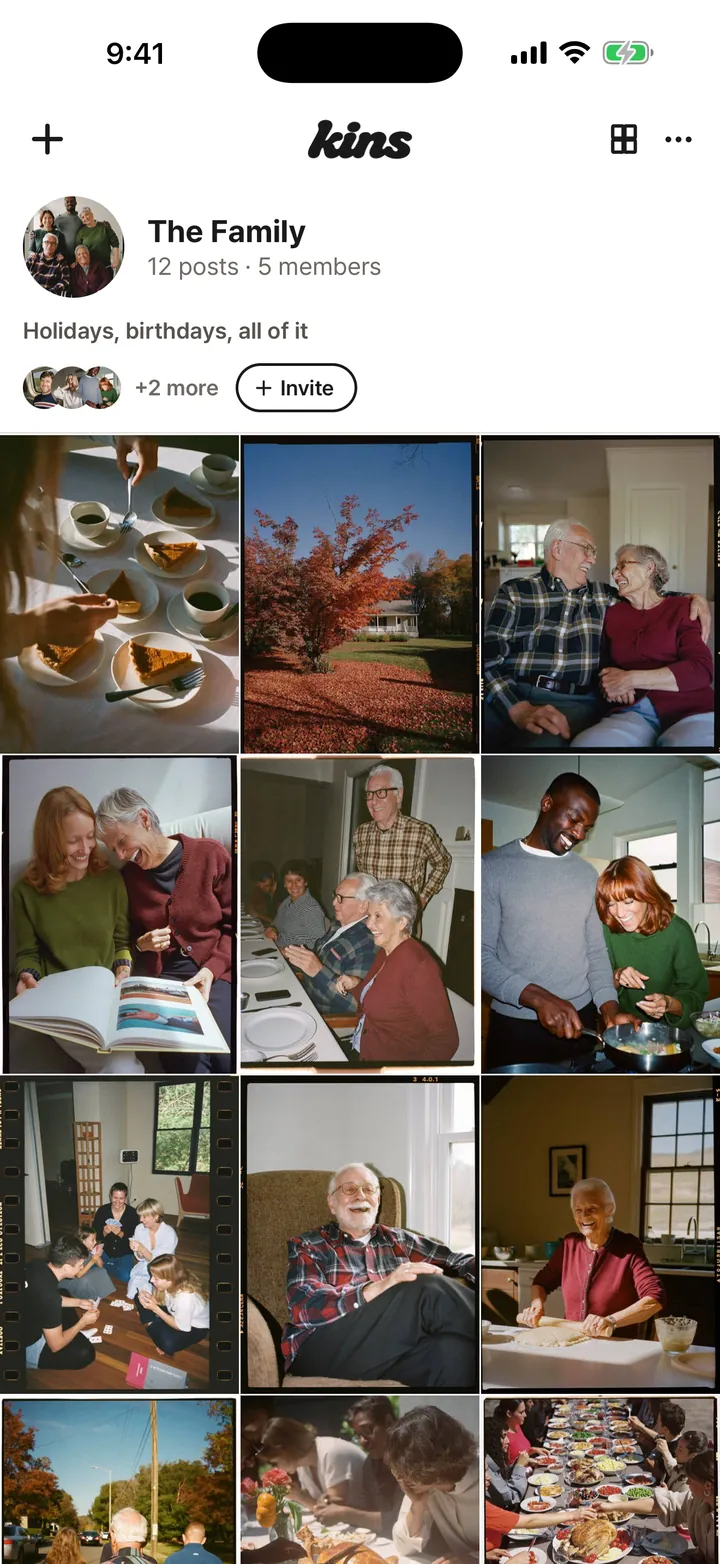
Club chat vs. a club album
| Club chat | Kins club album | |
|---|---|---|
| Last season’s photos | Buried under messages | All in one album, in time order |
| New members | Only see what’s posted after they join | See every photo from the start |
Good to know
- When a member leaves, the photos they posted stay in the album.
- No limit on photos per album. A post holds up to 20 photos, and videos run up to 3 minutes.
- Anyone in the album can save all its photos to their phone with "Save all" in Album settings.
FAQ
Can parents or fans see the album without joining?
Yes, if you set it to "View by link". Anyone with the link can look; only invited members post.
What happens to photos when someone leaves the club?
They stay in the album. If someone wants their photos gone, they can delete them before they leave.
Is it free?
Yes. Every core feature is free. Kins+ adds more upload space and extra features.
Start with one link today. It’s free.